
Getting Started
Quick Start Guide
From the box to your first reading in nine small steps. Charge it, settle the probes into the soil, and connect it — PlantSense takes it from there.





PlantSense Connect is free on the App Store for iPhone and on Google Play for Android.
Before You Start
- Your PlantSense probe and its USB-C charging cable
- The free PlantSense Connect app (App Store or Google Play)
- A 2.4 GHz Wi-Fi network and its password
- A few minutes
Step by Step
Setup, Start to Finish
Charge over USB-C
Slide the shell off, plug the included cable into the port on the board and into a USB-A charger or computer port, and give the sensor a full charge before you begin. A USB-C-to-USB-C charger won't charge it. The small light by the port is red while charging and green when full. A charge lasts 3 months or more.
Create your account
Download PlantSense Connect, free on the App Store for iPhone and on Google Play for Android. Sign up with your email, or continue with Google (or Apple, on iPhone). Free, with no subscription. Setup needs the app, because it talks to the sensor over Bluetooth; afterwards you can also sign in to the web dashboard at app.myplantsense.com.
Place the probes
With the shell still off, push the probes straight down until they're fully in the soil, near your plant's roots. The sensor takes its first reading as setup finishes, so it should already be in the soil.
Pro Tip: In small pots, angle the probe as you insert it so the sensing section stays down in the root zone as the soil settles.
Power on
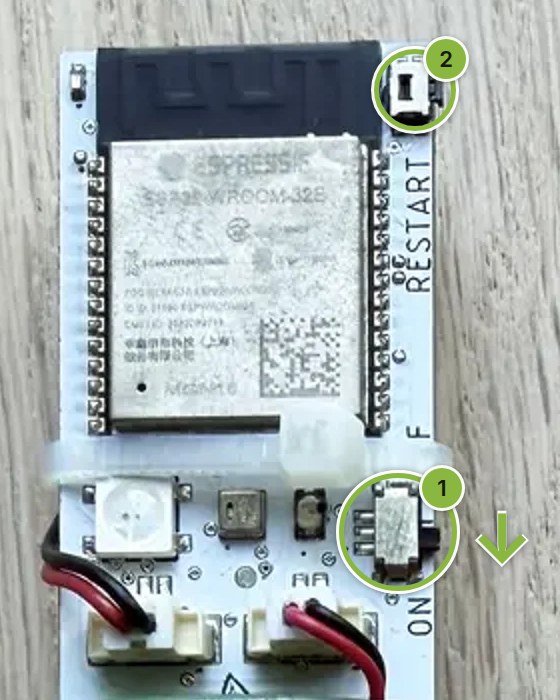
Slide the power switch down to ON. The LED flashes white for a second as it starts, then blinks blue — that's the sensor awake and ready to pair. If nothing happens, let it charge a little longer and press the RESTART button.
Pair over Bluetooth
In the app, tap Add PlantSense Device, then Scan for Devices. Pick your sensor from the list to connect. Keep your phone close, and allow Bluetooth when the app asks. On iPhone it also asks for Location, only to read your Wi-Fi network's name; you can say no and type the name yourself. On Android, allow Location too: the app needs it to scan for the sensor.
Join your Wi-Fi
Choose your Wi-Fi network and enter the password. PlantSense uses 2.4 GHz Wi-Fi, not 5 GHz — if your router broadcasts both, pick the 2.4 GHz one. The sensor then restarts and blinks white while it joins the network; about a minute later it shows solid green for a few seconds as its first reading goes through, then goes dark to sleep.
Pro Tip: Bluetooth is only needed for this first-time setup. From here on, the sensor reports over Wi-Fi on its own.
Identify your plant
Take a photo and PlantSense identifies the species using PlantNet, then loads that plant's ideal care ranges — the healthy bands your dials and alerts will use.
Put the shell back on
Slide the shell back on until it's fully seated over the O-rings. The sensor is water-resistant, so water the soil as usual with the sensor in place. Just don't submerge it.
Watch it come to life
Your first readings appear in the app, then refresh every 90 minutes to 5 hours. When a reading drifts outside a plant's range, PlantSense sends you an alert so you can step in early.
Pro Tip: The sensor sleeps between readings to save battery, so the very first one can take a little while to arrive. That's normal.
Quick Reference
What the LED Is Telling You
Blinking blue
Ready to pair. The sensor has no Wi-Fi saved and is waiting for the app. A sensor that was already set up only shows this if its Wi-Fi was cleared, usually by starting Reconnect Wi-Fi and not finishing. It stays awake while it waits, which uses battery.
What to do: New sensor: tap Scan for Devices and select it. Already set up: open the plant's settings and tap Reconnect Wi-Fi.
Blinking yellow
Paired to your phone over Bluetooth, waiting for the app to continue.
What to do: Finish the steps in the app.
Solid yellow
The app is actively connected — setup or calibration is in progress.
What to do: Keep the app open and stay nearby.
Blinking red
Can't reach your Wi-Fi, and it has stopped giving it the benefit of the doubt — the network it knows isn't available, the password changed, or it's a 5 GHz-only network. Only appears once the five-minute window after a restart has passed.
What to do: Check that the 2.4 GHz network is up. If the network name or password changed, open the plant's settings and tap Reconnect Wi-Fi.
Solid red (about 1.5 seconds, then dark)
Connected to Wi-Fi, but the PlantSense server couldn't be reached. The sensor goes back to sleep and tries again next cycle.
What to do: Check that your internet is up. If it keeps happening, contact support.
Solid green (about 5 seconds)
Setup worked — the sensor just sent its first reading. You only see this after you switch it on or press RESTART; on its own timed wake-ups it stays dark.
What to do: Nothing to do. The plant appears in the app with that first reading.
Solid cyan (20–30 seconds)
Installing a firmware update. The sensor downloads it, then restarts.
What to do: Leave it alone — don't switch it off or press RESTART while cyan is on. It flashes white as it restarts, then green once the updated sensor sends its first reading.
Solid white (1 second)
Powered on or restarting — you switched it on, pressed RESTART, or it just saved new Wi-Fi.
What to do: Watch what comes next: blinking white while it connects, or blinking blue if it has no Wi-Fi saved.
Blinking white
Connecting to your Wi-Fi. Usually a few seconds, and it keeps trying for the first five minutes after a restart.
What to do: Nothing yet. If it's still blinking white after five minutes, or turns to blinking red, it couldn't connect.
Blinking purple
Calibration mode. Your phone and your Wi-Fi are both connected.
What to do: Follow the calibration steps in the app.
No light
Normal. The sensor sleeps between readings to save battery and wakes every 90 minutes to 5 hours to report.
What to do: To wake it now, slide the shell off and press the RESTART button at the top of the board — it flashes white, then stays awake for 5 minutes so the app can find it.
Right after setup: A new sensor may install a firmware update right after setup: green, then cyan for about 30 seconds while it downloads, a white flash as it restarts, and green again. That is normal — leave it alone until the second green.
The light by the USB-C port: A small steady light beside the USB-C port is the battery charger, separate from the status LED: red while charging, green when full. It never means an error.
That's It
Your PlantSense sensor is now watching over your plant and will let you know when it needs attention. That leaves you free to enjoy your greenery instead of guessing at it.
Explore the App GuideHelp
Troubleshooting
Problems during setup are below. For a sensor that's already running (Offline, a new router, battery, readings), see the full troubleshooting guide.
The LED won't blink blue
- Check the power switch under the shell is on ON, then press the RESTART button.
- Still dark? The battery is likely flat. Charge it with the included cable from a USB-A charger or computer port for a while and try again.
The shell is hard to slide off
- Hold the base and pull the shell straight off with steady force. The O-rings that keep water out also make it a snug fit.
- If it's still stiff, wipe a thin film of silicone grease or petroleum jelly around both O-rings on the base, then slide the shell on and off once to spread it. Never use WD-40 or other sprays: they can damage the shell.
The app can't find my sensor
- Make sure Bluetooth is on and that PlantSense Connect is allowed to use it (your phone's Settings, under PlantSense Connect). On Android it also needs Location.
- The LED should be blinking blue. If it's dark, press RESTART; the sensor stays awake for 5 minutes.
- Keep your phone within a few feet of the sensor while it scans.
It won't join my Wi-Fi
- PlantSense uses 2.4 GHz Wi-Fi, not 5 GHz. If your router has separate names for the two bands, pick the 2.4 GHz one.
- Double-check the password; it's case-sensitive.
- Blinking white is normal while it connects: it can take up to five minutes after a restart. Blinking red after that means it couldn't reach the network.