
Hardware
Your Sensor
Everything about the device itself: its parts, keeping it charged, the status light, updates, and how to read what it measures.
Anatomy
What's under the shell
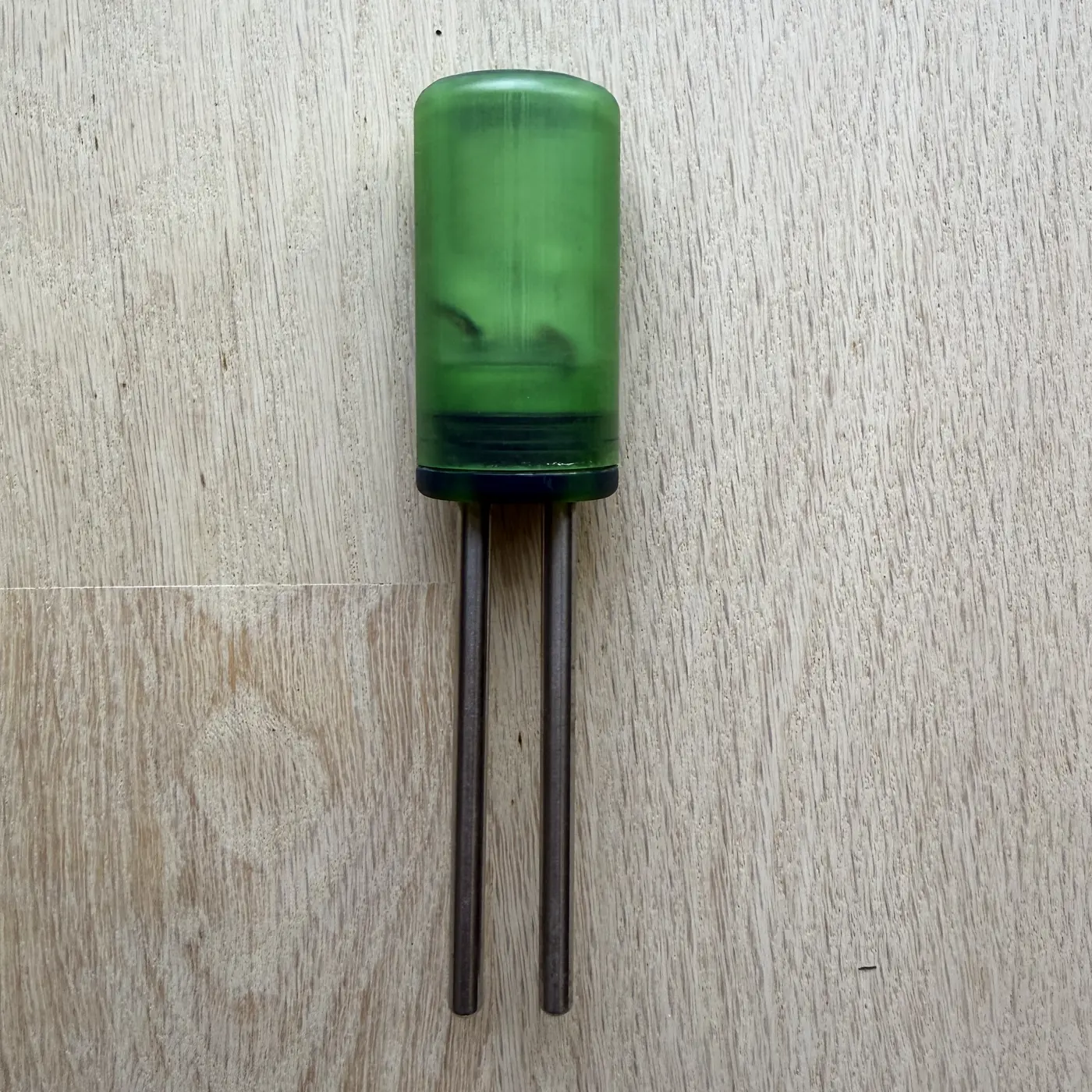
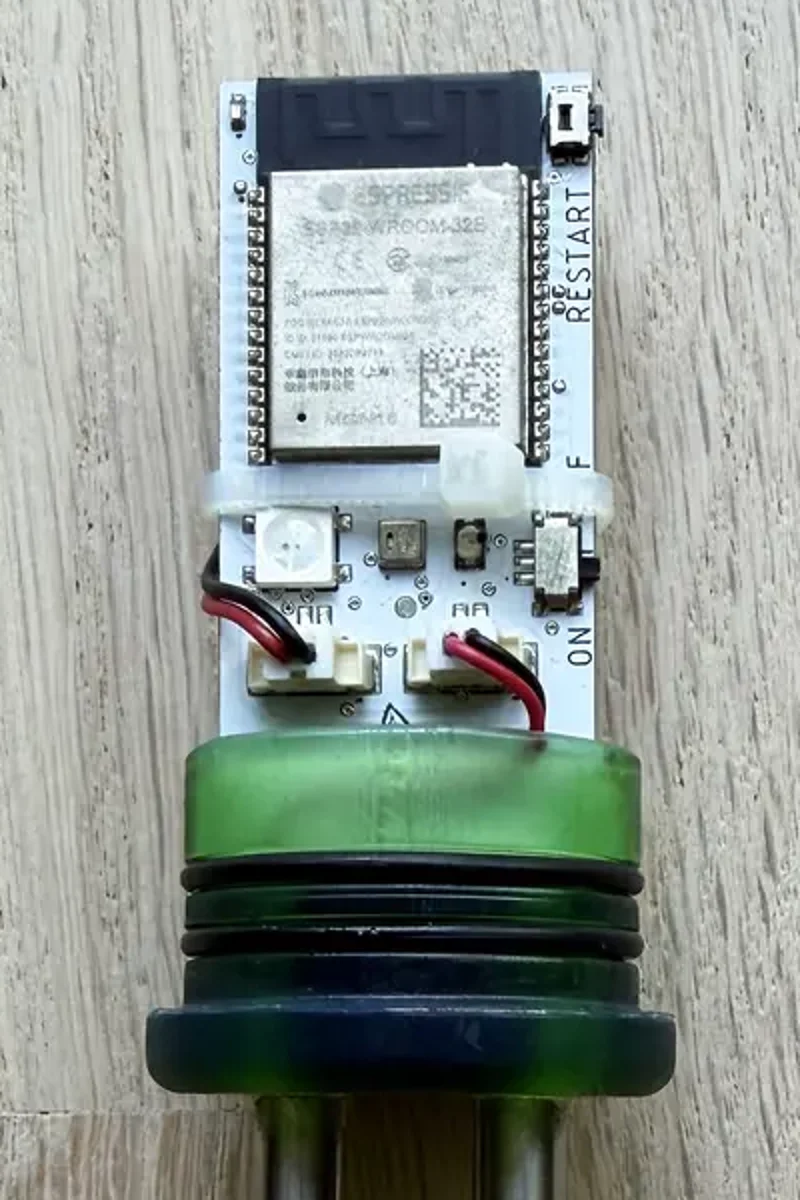
- Cap
- The translucent green shell. It slides onto the base over rubber O-rings, which keep water out. Pull it straight off to reach everything below.
- Status light
- A single colour LED on the board, visible through the shell. It's dark most of the time; that's normal. See What the light means below.
- Power switch
- A small slide switch on the board, marked ON. Leave it on; the sensor manages its own sleep.
- RESTART button
- A tiny push button by the RESTART label. Press it to wake the sensor for 5 minutes. It doesn't erase anything: your Wi-Fi and calibration stay put.
- USB-C port and charger light
- Charges the built-in battery. The small light beside the port belongs to the charger: red while charging, green when full.
- Probes
- The two metal rods. They measure soil moisture and need to be fully in the soil to read correctly.
Power
Charging and battery
Slide the shell off and plug the included cable into the port on the board, with its other end in a USB-A phone charger or a computer's USB port. Use that cable: current sensors don't charge from USB-C-to-USB-C chargers, such as a recent iPhone or laptop charger. The charger light beside the port is red while it charges and turns green when the battery is full. You can leave the sensor in its pot while it charges.
A charge lasts about 6 weeks or more, and longer with a strong Wi-Fi signal. The sensor spends almost all its time asleep and wakes every 90 minutes to 5 hours to send a reading, which is what stretches the battery. Things that drain it faster: a weak Wi-Fi signal, and a sensor that can't reach your Wi-Fi at all (it keeps retrying).
The app tells you before it runs out: a warning when the battery drops below 25%, and a critical alert below 20% and again below 15%. The plant's page also shows when it was last charged.
Waking it up
Waking and restarting
Between readings the sensor is asleep, and a sleeping sensor can't hear your phone. Some things in the app (calibration, Update Now, Reconnect Wi-Fi) need it awake. To wake it:
- Slide the shell off.
- Press the RESTART button, or slide the power switch off and back on.
- The light flashes white for a second. The sensor now stays awake for 5 minutes.
Restarting never erases your Wi-Fi, calibration, or readings. Unplugging or replugging the USB-C cable does not wake it: with the battery connected, the sensor just keeps sleeping.
Status light
What the light means
The same guide is in the app: open a plant's settings and tap What the light means.
Blinking blue
Ready to pair. The sensor has no Wi-Fi saved and is waiting for the app. A sensor that was already set up only shows this if its Wi-Fi was cleared, usually by starting Reconnect Wi-Fi and not finishing. It stays awake while it waits, which uses battery.
What to do: New sensor: tap Scan for Devices and select it. Already set up: open the plant's settings and tap Reconnect Wi-Fi.
Blinking yellow
Paired to your phone over Bluetooth, waiting for the app to continue.
What to do: Finish the steps in the app.
Solid yellow
The app is actively connected — setup or calibration is in progress.
What to do: Keep the app open and stay nearby.
Blinking red
Can't reach your Wi-Fi, and it has stopped giving it the benefit of the doubt — the network it knows isn't available, the password changed, or it's a 5 GHz-only network. Only appears once the five-minute window after a restart has passed.
What to do: Check that the 2.4 GHz network is up. If the network name or password changed, open the plant's settings and tap Reconnect Wi-Fi.
Solid red (about 1.5 seconds, then dark)
Connected to Wi-Fi, but the PlantSense server couldn't be reached. The sensor goes back to sleep and tries again next cycle.
What to do: Check that your internet is up. If it keeps happening, contact support.
Solid green (about 5 seconds)
Setup worked — the sensor just sent its first reading. You only see this after you switch it on or press RESTART; on its own timed wake-ups it stays dark.
What to do: Nothing to do. The plant appears in the app with that first reading.
Solid cyan (20–30 seconds)
Installing a firmware update. The sensor downloads it, then restarts.
What to do: Leave it alone — don't switch it off or press RESTART while cyan is on. It flashes white as it restarts, then green once the updated sensor sends its first reading.
Solid white (1 second)
Powered on or restarting — you switched it on, pressed RESTART, or it just saved new Wi-Fi.
What to do: Watch what comes next: blinking white while it connects, or blinking blue if it has no Wi-Fi saved.
Blinking white
Connecting to your Wi-Fi. Usually a few seconds, and it keeps trying for the first five minutes after a restart.
What to do: Nothing yet. If it's still blinking white after five minutes, or turns to blinking red, it couldn't connect.
Blinking purple
Calibration mode. Your phone and your Wi-Fi are both connected.
What to do: Follow the calibration steps in the app.
No light
Normal. The sensor sleeps between readings to save battery and wakes every 90 minutes to 5 hours to report.
What to do: To wake it now, slide the shell off and press the RESTART button at the top of the board — it flashes white, then stays awake for 5 minutes so the app can find it.
Right after setup: A new sensor may install a firmware update right after setup: green, then cyan for about 30 seconds while it downloads, a white flash as it restarts, and green again. That is normal — leave it alone until the second green.
The light by the USB-C port: A small steady light beside the USB-C port is the battery charger, separate from the status LED: red while charging, green when full. It never means an error.
Updates
Firmware updates
The sensor keeps itself up to date. When a new firmware version is released, it downloads and installs it on its own at a regular check-in, usually within about 5 hours. You don't need to do anything.
To see which version you have, open the plant's settings in the app and look under Firmware. It says either “Up to date” or which update is available.
To update right away: wake the sensor (press RESTART), then tap Update Now within 5 minutes. The update installs right after the sensor's next reading.
While it installs, the light is solid cyan for 20 to 30 seconds. Don't switch it off or press RESTART during that time. It flashes white as it restarts, then green once the updated sensor sends its first reading. A brand-new sensor often does this right after setup, so seeing green, cyan, white, then green again is normal.
In the pot
Placement and water
Push the probes straight down until they're fully in the soil, close to the plant's roots, so the base sits at the soil surface. Probes that are partly in the air read drier than the soil really is. In a small pot, angle the sensor slightly so the probes stay in the root zone.
Keep it where it can reach your Wi-Fi. A weak signal costs battery, and the app warns you if the signal is too weak.
The shell is sealed with O-rings against splashes and rain, downpours included, so water the soil as usual with the sensor in place, and outdoors it's fine in the open. It isn't made to go under water: don't submerge the sensor or put it where it can end up sitting in standing water.
The numbers
What the readings mean
Soil moisture is a 0–100% scale between two reference points: 0% is dry soil and 100% is soil that's fully soaked. It's not the percentage of water in the soil, so there isn't one “right” number. What counts as healthy depends on the plant. When you identify your plant, the app loads its care ranges, and the dial colours and alerts use those. A succulent can sit happily low; a fern wants to stay well up the scale.
Every plant starts on a standard scale. To fit it to your soil, open the plant's settings and use the Moisture scale card: tap I just watered: set this as 100% right after a thorough watering, or drag the slider. For a deeper calibration, Advanced: Sensor calibration saves dry and wet points on the sensor over Bluetooth: calibrate dry with the probes in dry soil and wet in the plant's soil right after watering, never in a glass of water.
Temperature and humidity are measured in the air around the sensor. They need no calibration.
Light is reported in lux and tops out at about 60,000 lux. That's already far brighter than anything a houseplant gets indoors, so direct sun simply reads as the maximum. More on that in what the light sensor can see.
Readings arrive every 90 minutes to 5 hours. The app also works out when you watered from the moisture readings, so there's nothing to log.
Something not working? See Troubleshooting, or email [email protected].